Table of Contents
- Video of this Article on Microsoft Edge as a Text-to-Video Converter
- What Is a Text-to-Video Converter and How Does It Differ from Text-to-Speech?
- How to Use Microsoft Edge as a Free Text-to-Video Converter
- 1- Open Your Content in Edge
- 2- Activate Read Aloud
- 3- Choose a Voice and Language
- 4- Adjust Reading Speed
- 5- Record the Narration
- 6- Edit and Finalize
- 7- Publish to YouTube
- Read Aloud vs. Immersive Reader in Microsoft Edge
- Which Languages Are Supported by Microsoft Edge?
- Adding Visuals for a Richer Video Experience
- The Limitations of Most Text-to-Video Converters
- Flipped and Asynchronous Learning at LELB Society
If you’re looking for a completely free way to turn text into engaging videos, Microsoft Edge has a hidden gem for you. With its built-in Read Aloud feature, Edge can convert any webpage, article, or blog post into natural-sounding narration that’s perfect for YouTube, online lessons, or personal projects. Unlike most paid text-to-video software, this method requires no subscriptions, plugins, or complicated setup. In this guide, you’ll learn how to use Microsoft Edge as a free text-to-video converter, record the narration with simple tools, and repurpose your written content into high-quality video format to reach a wider audience effortlessly.
Video of this Article on Microsoft Edge as a Text-to-Video Converter
This video has been created with Microsoft Edge Read Aloud feature.

What Is a Text-to-Video Converter and How Does It Differ from Text-to-Speech?
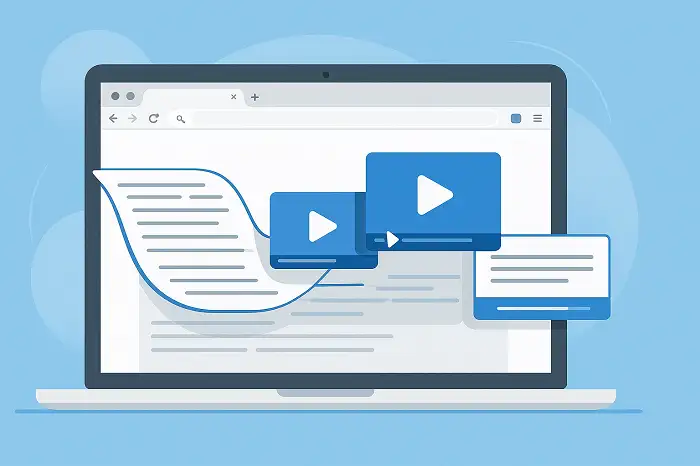
A text-to-video converter is an AI-powered tool that transforms written content, such as blog posts, scripts, or articles, into video format. Instead of manually recording a narration or designing slides, these converters automatically generate visuals, animations, subtitles, and even voiceovers to bring text to life. They’re widely used by content creators, educators, and marketers to repurpose written material into YouTube videos, online lessons, social media clips, or promotional content. This makes it much easier to reach audiences who prefer video over reading.

While text-to-speech (TTS) technology focuses only on converting text into spoken audio, a text-to-video converter goes a step further. It combines TTS narration with visual elements—images, clips, transitions, and sometimes avatars—so the end result is a complete video, not just an audio file. In short, TTS gives you a voice, while text-to-video gives you both a voice and visuals for wider communication.
How to Use Microsoft Edge as a Free Text-to-Video Converter

Using Microsoft Edge’s Read Aloud feature, you can quickly transform your written content into narrated videos for YouTube vodcasts, online lessons, or educational platforms like LELB Society. Follow these simple steps:
1- Open Your Content in Edge
- Navigate to the blog post, article, or lesson you want to convert.
- Make sure it’s displayed clearly in Microsoft Edge.
2- Activate Read Aloud
- Press Ctrl + Shift + U on your keyboard.
- Alternatively, right-click anywhere on the page and select Read Aloud.
3- Choose a Voice and Language
- Click the voice settings icon (a speaker with a gear) on the Read Aloud toolbar.
- From here, select your preferred voice style (e.g., male or female, neural voices).
- Choose the language that best matches your content (English, Persian, etc.).
4- Adjust Reading Speed
- Use the speed slider to slow down or speed up the narration.
- This is useful for language learners or to match the pacing of your video.
5- Record the Narration
- Use a free screen recorder like OBS Studio or Microsoft Clipchamp to capture both the audio narration and any on-screen visuals (slides, scrolling text, or static images).
6- Edit and Finalize
- Trim, add subtitles, or include background music in a free video editor.
- Save the project as an MP4 file optimized for YouTube.
7- Publish to YouTube
- Upload the video to your YouTube channel (e.g., LELB Society).
- Add a descriptive title, SEO-friendly tags, and an engaging thumbnail to maximize reach.
Read Aloud vs. Immersive Reader in Microsoft Edge
Microsoft Edge offers two different modes for narration: Read Aloud and Immersive Reader. While they both use text-to-speech, their purposes and strengths differ.
- Read Aloud is designed for quick listening directly within the browser. It works on almost any webpage without altering the layout. You can activate it with Ctrl + Shift + U, choose from multiple natural voices, adjust speed, and listen while the text is highlighted in place. This makes it ideal for content creators who want to capture narration and convert written posts into voiceovers for video.
- Immersive Reader, on the other hand, is an accessibility and focus tool. It reformats the page into a simplified, distraction-free view. It also integrates Read Aloud, but the main emphasis is on reading comprehension features, such as adjustable text size, grammar tools, and line focus. While useful for learners, it adds extra steps and is less convenient if your goal is just voice conversion.
For text-to-voice conversion to create videos or vodcasts, Read Aloud mode is the better choice. It’s faster, requires no page reformatting, and provides immediate access to natural voices with minimal setup.
Which Languages Are Supported by Microsoft Edge?

Microsoft Edge’s Read Aloud feature supports a wide range of languages, making it highly versatile for global users. It uses Microsoft’s neural text-to-speech (TTS) technology, which provides natural, human-like voices in dozens of languages and accents. Among the most widely used are English (US, UK, Australia, India), Spanish (Spain, Mexico, US), French (France, Canada), German, Italian, Portuguese (Brazil, Portugal), Chinese (Simplified and Traditional), Japanese, Korean, Arabic, Persian, and many others.
This multilingual support is particularly valuable for educators, content creators, and platforms like LELB Society, where audiences may come from diverse linguistic backgrounds. By selecting the right language and voice from the Read Aloud settings, you can easily create narrations that are not only accurate but also engaging for your target audience.
At LELB Society, a bilingual academy of English and Persian founded and administered by Dr. Mohammad Hossein Hariri Asl, the Persian narrators available in Microsoft Edge—Farid (male) and Dilara (female)—have been thoroughly tested. While Edge’s English narrators deliver highly natural and accurate pronunciation, the Persian voices still fall short. Their accent and articulation are not entirely authentic, which reduces the overall quality of narration for Persian learners. Given the importance of Persian as a major world language, it is hoped that Microsoft will enhance these narrators in future updates. Until then, we prefer to record Persian posts manually to ensure clarity, accuracy, and a more natural listening experience for our students.
Adding Visuals for a Richer Video Experience
One important limitation of Microsoft Edge Read Aloud is that it does not automatically add visuals to your webpages. The feature is designed solely to narrate the text, highlight the current sentence or paragraph, and scroll down the page as it reads. This means that if you plan to create a video enriched with pictures, graphs, charts, or other multimedia elements, you must first embed those visuals directly into the webpage before converting it into a narrated video.
At LELB Society, visual learning plays a central role in our educational philosophy. To support this approach, we have developed one of the most comprehensive visual dictionaries of academic words in the world, featuring over 2,800 advanced vocabulary items illustrated in authentic context. By combining narration with meaningful visuals, learners can engage multiple senses, making the learning process more memorable and effective.
The Limitations of Most Text-to-Video Converters
While text-to-video converters can be powerful tools, most of the popular ones come with two major drawbacks: cost and complexity. Many well-known platforms, such as Fliki, Pictory, or InVideo, operate on a freemium model, where the free tier is extremely limited—usually watermarked exports, low video length caps, or restricted voice options. To unlock the full potential, users are often required to pay monthly subscription fees that can be too expensive for educators, students, or small creators.
Another common issue is usability. These platforms are feature-rich but not always user-friendly, especially for those who just want a simple, quick solution. The interfaces can feel overwhelming, filled with templates, stock media libraries, and customization steps that take time to learn. For many users, the extra effort and cost outweigh the benefits, making a built-in tool like Microsoft Edge’s Read Aloud an appealing, free, and straightforward alternative.
Flipped and Asynchronous Learning at LELB Society

At LELB Society, flipped learning and asynchronous learning are two building blocks of our educational system. Instead of teaching the same lesson repeatedly, we produce high-quality teacher-guided video lessons in English and Persian and embed them directly into our lessons. This ensures that each topic is taught once at a professional standard and made permanently accessible to our members.
In this model, text-to-video conversion becomes especially valuable. By transforming written lessons and blog posts into narrated videos, we support students who prefer visual and auditory learning while making the content available asynchronously. Learners can study the videos at their own pace, revisit them whenever needed, and then engage with our teachers through comments and discussion boards. This combination of video-based instruction and asynchronous interaction allows us to deliver a more scalable, interactive, and effective learning experience.