Table of Contents
- Using Google Chrome Reading Mode for Text-to-Video Learning
- Redesigned Reading Mode in Chrome 147 and Later
- Google Chrome Reading Mode and Reduced Visual Distraction
- Customization Features in Google Chrome Reading Mode (Version 148)
- Split Mode and Full-Screen Reading in Google Chrome
- From the Read Aloud Extension to Chrome’s Native Reading Mode
- Persian Text-to-Speech Support: Microsoft Edge vs. Google Chrome
- Interactive Text-to-Speech Learning on LELB Society
- Reduced Cognitive Load for Language Learners
- Reading Mode for Academic Research and Study
- Limitations of Google Chrome Reading Mode with Bullet Lists
Discover how Google Chrome Reading Mode can improve readability, focus, and accessibility for visually impaired users and online learners. In this article, I compare Chrome’s clean reading experience with Microsoft Edge’s Read Aloud feature and explain why I personally prefer Chrome for distraction-free reading. Learn about the strengths and limitations of Chrome Reading Mode, including Persian language support, text-to-speech issues, and practical accessibility benefits for students, teachers, and users with visual impairments.
Using Google Chrome Reading Mode for Text-to-Video Learning
The video you are watching right now has been created with the help of the new Reading Mode in Google Chrome as a practical text-to-video conversion tool. At LELB Society, almost every lesson or educational post is accompanied by an embedded video because flipped learning and asynchronous learning play a central role in our educational methodology. By combining readable web content with audio narration and screen recording, Chrome’s distraction-free Reading Mode can help instructors and learners transform written lessons into accessible multimedia materials more efficiently. This approach is especially beneficial for online learners, visually impaired users, and students who prefer listening and watching in addition to traditional reading.

Redesigned Reading Mode in Chrome 147 and Later
Although Google Chrome had earlier forms of Reading Mode in previous versions, the feature became far more practical and visually appealing starting from Chrome 147 and continuing in Chrome 148. The redesigned Reading Mode introduced a cleaner and more immersive full-page reading experience that feels closer to dedicated reader applications. Earlier versions, including Chrome 146, still relied heavily on a limited sidebar layout that many users found less comfortable for long reading sessions. With Chrome 147 and later updates, Google significantly improved the interface, customization options, and distraction-free design, making the feature more useful for accessibility and low vision users.
Google Chrome Reading Mode and Reduced Visual Distraction
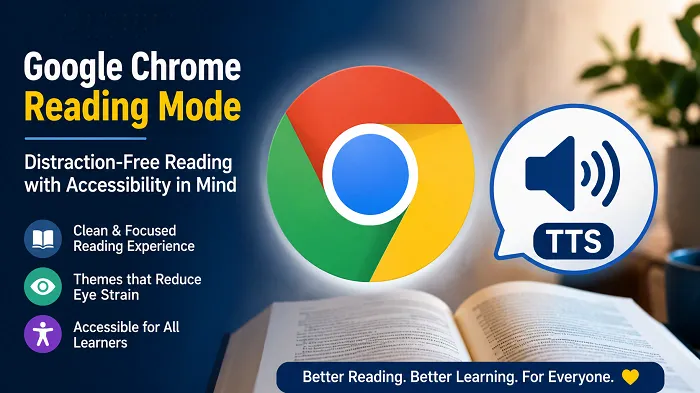
Both Microsoft Edge and Google Chrome offer useful reading modes designed to remove unnecessary distractions from webpages. However, in my experience as a visually impaired user, Google Chrome provides a cleaner and more focused reading environment. Chrome’s Reading Mode simplifies the layout effectively by removing advertisements, sidebars, and visual clutter while maintaining a smooth and minimal interface. This simplicity makes it easier to concentrate on the main content, especially during long reading sessions.

Another advantage of Google Chrome Reading Mode is its selection of visual themes and background colors. Low vision users like me (Dr. Mohammad Hossein Hariri Asl) often experience eye strain when reading black text on bright white backgrounds for extended periods. Chrome allows users to choose calmer themes with softer contrast and darker backgrounds, which can significantly reduce visual fatigue. For accessibility purposes, these customization options make the reading experience more comfortable and sustainable for students, researchers, and anyone with visual impairments.
Customization Features in Google Chrome Reading Mode (Version 148)

With the latest version of Google Chrome at the time of writing this article — Chrome 148 — Reading Mode has become far more customizable and accessibility-friendly than previous versions. Google has added several practical options that allow users to personalize the reading and listening experience according to their visual, cognitive, and learning needs. These improvements are especially valuable for low vision users, online learners, and people who prefer distraction-free reading environments.
Some of the most useful customization features in Chrome 148 Reading Mode include:
- Increasing or decreasing the font size for more comfortable reading
- Accelerating or slowing down the narration speed during text-to-speech playback
- Switching between dark and light themes to reduce eye strain
- Choosing between split mode and immersive full-screen reading mode
- Changing the language and selecting natural voices, including downloading voices provided by Google
- Pinning Reading Mode to the Chrome toolbar for faster accessibility and reachability
- Customizing line height and letter spacing to improve readability and visual comfort
- Removing hyperlinks and images from the article while narration is active to minimize distractions
Together, these features make Google Chrome Reading Mode a powerful built-in accessibility tool that can support modern educational approaches such as asynchronous learning, flipped learning, and multimedia-based online instruction.
Split Mode and Full-Screen Reading in Google Chrome
One of the most practical improvements in the newer versions of Google Chrome Reading Mode is the ability to switch between split mode and full-screen reading mode. In split mode, the article appears in a separate reading panel beside the original webpage, allowing users to continue browsing while reading the simplified content. This layout is useful for multitasking, quick reference, and comparing information without leaving the original page. However, for longer reading sessions and better concentration, many users prefer the newer full-screen mode, which removes almost all distractions and creates a more immersive reading experience.

Google Chrome also provides simple shortcuts and interface controls to switch between these two modes efficiently. After opening Reading Mode from the side panel, users can expand the reading area into full-screen mode through the reading interface controls. Pressing the F11 key can further maximize the browser into full-screen view for even fewer distractions. For accessibility purposes, especially for low vision users, the full-screen layout combined with dark themes and larger fonts can significantly improve readability and reduce eye strain during extended study sessions.
From the Read Aloud Extension to Chrome’s Native Reading Mode
Before Google Chrome version 146, I regularly used the Chrome extension “Read Aloud” to convert written web content into speech and create a more accessible reading experience. At that time, Chrome’s built-in Reading Mode was relatively limited and did not provide the clean, immersive, and user-friendly environment that many low vision users needed. Third-party extensions like Read Aloud helped fill this gap by offering practical text-to-speech functionality directly inside the browser.

However, with the release of Chrome 147 and later versions, Google significantly improved its native Reading Mode with a cleaner interface, better customization options, improved themes, and a more distraction-free layout. As a result, I eventually removed the Read Aloud extension because the new Reading Mode now provides a smoother and more integrated reading experience without relying heavily on external tools. For accessibility purposes, especially for visually impaired users and online learners, Chrome’s modern Reading Mode feels more stable, lightweight, and comfortable for long study sessions.
Persian Text-to-Speech Support: Microsoft Edge vs. Google Chrome
Despite the impressive improvements in Google Chrome Reading Mode, the browser still remains weaker than Microsoft Edge in terms of Persian text-to-speech support. Microsoft Edge currently offers much better multilingual accessibility for Persian speakers by supporting natural Persian voices such as Farid and Dilara. These voices sound relatively fluent and human-like, making the reading experience more comfortable for visually impaired users, language learners, and people who prefer listening to online content instead of reading lengthy texts manually.
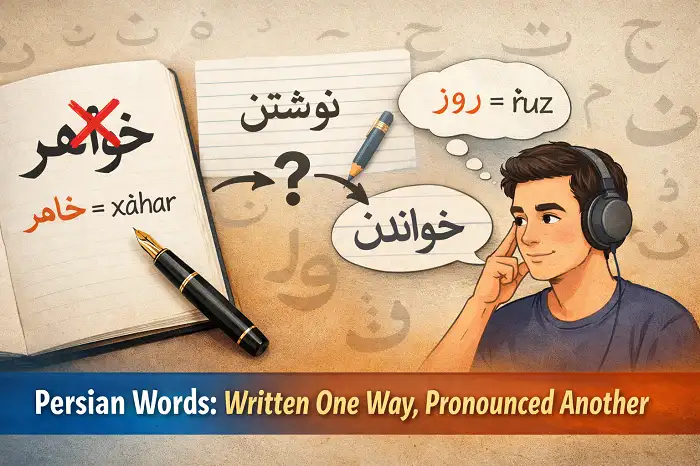
In contrast, the current versions of Google Chrome Reading Mode still do not provide proper Persian voice support for converting Persian text into speech. Although Chrome can display Persian webpages correctly in Reading Mode, its built-in read-aloud functionality does not yet recognize Persian as a supported spoken language in many systems. As a result, users who regularly work with Persian educational content may still prefer Microsoft Edge for listening purposes, while choosing Google Chrome primarily for its cleaner interface, distraction-free environment, and customizable visual themes.
Therefore, if you are learning Persian and would like to improve your listening comprehension through natural text-to-speech technology, Microsoft Edge Reading Mode is currently a more suitable option. Nevertheless, at LELB Society, this limitation is largely compensated for because our bilingual academy already provides podcasts and video versions for virtually every lesson and article. With more than 4,600 English and Persian lessons enriched with embedded videos, learners can practice listening, pronunciation, reading, and comprehension simultaneously through authentic multimedia educational content designed for flipped and asynchronous learning.
Interactive Text-to-Speech Learning on LELB Society

At LELB Society, our registered members and students can interact with the content of premium lessons in a more dynamic way through our built-in text-to-speech functionality. Users are able to select any part of a lesson instantly and listen to the selected text on demand, which creates an effective opportunity to practice listening and pronunciation while reading. In other words, our lessons can literally “talk” to learners, allowing them to strengthen both reading comprehension and listening skills almost simultaneously. This interactive approach is particularly useful for language learners, auditory learners, busy students, and visually impaired users who benefit from multimodal educational content.
Reduced Cognitive Load for Language Learners
One of the major educational advantages of Google Chrome Reading Mode is its ability to reduce cognitive load for language learners. By removing advertisements, popups, animations, sidebars, and other unnecessary interface elements, Reading Mode creates a cleaner and more focused learning environment. This simplified presentation can help learners improve reading comprehension, concentration, vocabulary retention, and sustained attention while studying online texts. For students learning English or Persian as a second language, minimizing visual distraction is especially important because it allows them to devote more mental energy to understanding vocabulary, grammar, and meaning instead of processing irrelevant visual information.
Reading Mode for Academic Research and Study
Google Chrome Reading Mode can also serve as a practical tool for academic research and scholarly reading. Students, teachers, and researchers often spend long hours reading online articles, journals, blog posts, and educational resources that are surrounded by distracting advertisements and complex webpage layouts. Reading Mode transforms these pages into a cleaner and more readable format that supports deeper concentration and more efficient study. In academic environments such as LELB Society, where online learning, independent study, and asynchronous education are strongly emphasized, distraction-free reading tools can significantly improve the overall learning experience for both educators and learners.
Limitations of Google Chrome Reading Mode with Bullet Lists

Despite its modern and distraction-free interface, Google Chrome Reading Mode still has some limitations in processing structured webpage content accurately. One noticeable issue is that the built-in read-aloud functionality may fail to read ordered and unordered lists properly. In some cases, bullet points and numbered lists are skipped entirely, while in others they are read without natural pauses or clear structure. This limitation can reduce comprehension for learners who rely on text-to-speech technology to study educational materials, step-by-step instructions, or vocabulary lists.
The problem appears to be related not only to webpage design but also to the current maturity of Chrome’s text-to-speech parser. Even on well-structured WordPress websites using semantic HTML, some list-based content may not be interpreted correctly during audio playback. Compared to Google Chrome, Microsoft Edge generally handles bullet lists and numbered structures more naturally in its Read Aloud feature. Therefore, although Chrome currently offers a cleaner and more immersive reading environment, its text-to-speech support for structured educational content still requires further improvement.