Table of Contents
- Video on How to Add a Back to Top Button in WordPress
- What Is a Back to Top Button?
- Are Back to Top Buttons Obsolete?
- Which Websites Need a Back to Top Button?
- Why a Back to Top Button Matters for LELB Society
- How to Add the HTML Code to the Footer.php File
- How to Add the JavaScript Code for Lazy Loading
- How to Style the Back to Top Button with CSS
- Why the Back to Top Button Is Positioned on the Left Side
If you want to improve user experience and navigation on your WordPress site without relying on extra plugins, adding a “Back to Top” button is a simple and effective solution. This lightweight feature helps visitors quickly return to the top of long pages, reducing scrolling frustration and improving engagement. In this tutorial, you’ll learn how to add a stylish back-to-top button to your WordPress website using only HTML, CSS, and JavaScript — all manually inserted into your footer.php file for optimal speed and control.
Video on How to Add a Back to Top Button in WordPress

What Is a Back to Top Button?
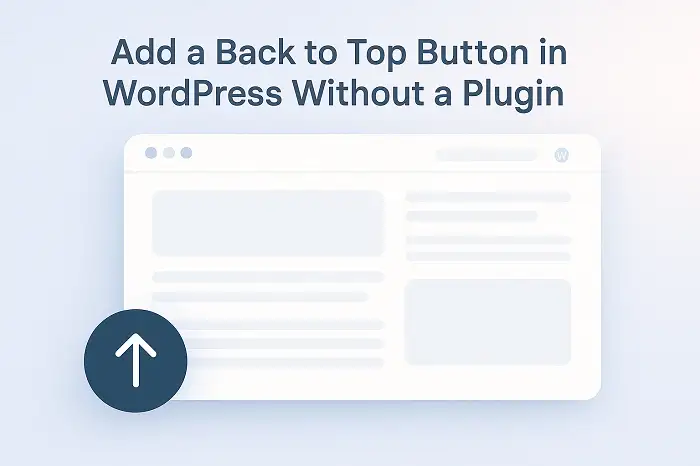
A back to top button is a small, floating icon or link that allows users to quickly scroll back to the top of a webpage with a single click. It’s especially useful on long pages where users might otherwise have to scroll manually through large amounts of content. This simple navigation feature enhances usability, accessibility, and overall site experience by saving time and reducing effort, particularly for mobile visitors or users with limited dexterity.
Are Back to Top Buttons Obsolete?
Despite the rise of modern web design trends and smooth scrolling features, back to top buttons are far from obsolete. Many websites still rely on them to enhance navigation, especially on content-heavy or infinite-scroll pages. While some minimalist designs omit them for aesthetic reasons, usability studies continue to show that users appreciate having a visible shortcut to return to the top. Therefore, the feature remains relevant when implemented subtly and responsively without distracting from the main content.
Which Websites Need a Back to Top Button?
Websites with long-form content or scroll-intensive layouts benefit the most from a back to top button. Examples include blogs, news sites, e-learning platforms, e-commerce stores, and forums — all of which often feature lengthy pages or product listings. Educational websites like LELB Society, with numerous lessons and articles, can also improve user experience by helping visitors navigate long posts more efficiently. In short, any site that prioritizes readability, accessibility, and convenience should consider adding this simple yet effective tool.
Why a Back to Top Button Matters for LELB Society

LELB Society is a bilingual educational platform built with WordPress, offering a vast collection of English and Persian learning resources, including thousands of video lessons. New students can explore the platform and access premium materials during a 24-hour free trial, giving them a firsthand experience of the website’s quality and interactive content. To inform visitors about this limited-time offer, a special note or banner is displayed in the website’s top bar, inviting them to register or log in for full access.
However, since the top bar is not sticky and disappears as users scroll down through the long, content-rich pages, many new visitors might overlook this important announcement. This is where a Back to Top button becomes highly beneficial. By allowing users to instantly return to the top of the page, it increases the visibility of the top-bar note and ensures that potential members don’t miss out on the free trial opportunity. In short, this simple button enhances both user experience and conversion potential by guiding visitors back to essential site information.
How to Add the HTML Code to the Footer.php File
To manually create a Back to Top button in WordPress without using any plugins, you first need to insert a small HTML snippet into your theme’s footer.php file. This ensures that the button appears on every page, right before the closing </body> tag, so it loads last and doesn’t interfere with your site’s layout or performance.
Open your WordPress dashboard and go to Appearance → Theme File Editor (or access your files via FTP or File Manager). From the list of theme files on the right, find and open the footer.php file. Scroll to the very bottom and locate the </body> tag. Then, paste the following line of code immediately above it:
<a href="#top" id="back-to-top" aria-label="Back to top" title="Back to Top">⇧</a>In this code, the ⇧ character serves as a simple upward arrow icon representing the action of going back to the top. It’s lightweight and doesn’t require any external icon library like Font Awesome, which helps improve page speed. The title=”Back to Top” attribute displays a tooltip when users hover over the button, enhancing usability. The aria-label=”Back to top” attribute improves accessibility by informing screen readers about the button’s purpose, making your website more inclusive for visually impaired users like Dr. Mohammad Hossein Hariri Asl, the founder of LELB Society.
After inserting this HTML line into your footer.php file, save the changes and reload your website to ensure the code was added correctly. At this stage, you won’t see any visible button or animation yet — that’s completely normal. The HTML provides the foundation, but it needs styling from CSS and behavior from JavaScript to become functional and match your site’s design. In the next steps, you’ll add the CSS code to define the button’s appearance and the JavaScript code to make it appear only when the user scrolls down the page.
How to Add the JavaScript Code for Lazy Loading

Once you’ve added the HTML snippet, the next step is to give your Back to Top button some interactive functionality using JavaScript. This lightweight script makes the button appear only after the user scrolls down the page — a technique known as lazy loading. It helps keep your design clean by hiding the button when it’s not needed and showing it only when users might want to return to the top.
To add the JavaScript code, open your theme’s footer.php file again and place the following script right below the HTML code you added earlier and just before the closing </body> tag:
<script>
document.addEventListener("DOMContentLoaded",function(){
  const btn=document.getElementById("back-to-top");
  window.addEventListener("scroll",function(){
    if(window.scrollY>300){btn.classList.add("show");}
    else{btn.classList.remove("show");}
  });
});
</script>
This code listens for the user’s scroll position. Once the visitor scrolls down more than 300 pixels, it adds the class show to the button, making it visible. When the visitor scrolls back toward the top, the class is removed, hiding the button again. This dynamic behavior makes the button appear naturally and avoids visual clutter when the user is already near the top of the page.
Keep in mind that adding this JavaScript code is optional. If you prefer your Back to Top button to be always visible on the page, you can safely skip this step. However, lazy loading creates a cleaner and more professional appearance, particularly for long pages or mobile users who value an uncluttered interface.
How to Style the Back to Top Button with CSS
After adding the HTML and JavaScript code, the final step is to style your Back to Top button using CSS. You can easily do this by navigating to Appearance → Customize → Additional CSS in your WordPress dashboard. This method keeps your styling separate from theme files, ensuring that your changes remain safe even after theme updates.
Paste the following un-minified CSS code into the Additional CSS section:
#back-to-top {
  position: fixed;
  bottom: 20px;
  left: 20px;
  width: 48px;
  height: 48px;
  line-height: 48px;
  background-color: #13406d;
  color: #fff;
  font-family: "Fira Code", monospace;
  font-size: 22px;
  font-weight: 700;
  text-align: center;
  text-decoration: none;
  border-radius: 50%;
  opacity: 0;
  visibility: hidden;
  transition: opacity 0.3s, background-color 0.3s, visibility 0.3s;
}

#back-to-top.show {
  opacity: 0.6;
  visibility: visible;
}

#back-to-top:hover {
  opacity: 1;
  background-color: #06c;
}
This CSS controls both the appearance and the animation of the button. The background-color of #13406d is a deep blue tone aligned with LELB Society’s branding, but you can replace it with your own brand color to match your website’s theme. The transition property adds a smooth fading effect when the button appears or disappears, making the interaction visually pleasing and less abrupt.
By default, the button appears with reduced opacity (0.6) when visible, giving it a subtle and non-intrusive look. When users hover over it, the opacity changes to 1, making the button stand out and feel interactive. This simple styling creates a polished and user-friendly Back to Top button that blends seamlessly with your site’s overall design.
Why the Back to Top Button Is Positioned on the Left Side
In the CSS code provided above, the Back to Top button is intentionally positioned on the left side of the screen using the property left: 20px;. This placement is particularly suitable for LELB Society, where asynchronous learning plays a central role. To support our registered students effectively, we use a live chat system that appears in the bottom-right corner of the screen, allowing learners to receive guidance and assistance at their own pace. Placing the Back to Top button on the opposite side prevents overlap or distraction from the chat interface. However, if your website doesn’t have any interactive element or widget in that area, you can easily move the button to the right by replacing left: 20px; with right: 20px; in the CSS code. This gives you flexibility to adapt the layout based on your site’s unique design and functionality.